How to (Safely) Set Up Claude Cowork for Enterprise Plans
Claude Cowork isn't just a chatbot. It's an AI agent that you can delegate work to. Although it unlocks powerful use cases for business, Cowork's greater capabilities come with greater risks. In this article, I'll break down how AI owners can (safely) deploy Cowork to help their companies maximize its value while minimizing its risks.
The AI situation in most orgs is similar. The CEO, board, or investors (or some combo) say everyone must use it, IT says we can't due to AI risks, and AI owners are caught in the middle.
A common point of contention is whether to turn on Claude Cowork (executives say give it to everyone, while IT says turn it off completely). The issue is that both sides are right: Cowork can transform a business, but it also introduces important risks.
Here, I'll explain how AI owners can balance Cowork's capabilities vs. risks and set up the right controls for it based on their company's needs.
What is Claude Cowork?
Cowork is an AI agent you can delegate work to. So instead of having it do small tasks like summarize emails and search the web, it can handle complex, multi-step tasks like:
- Compare quarterly budgets to actuals from your bookkeeping software and automatically flag discrepancies
- Build a QBR deck using data from your CRM, sales reports, and call transcripts
- Identify and draft responses to important emails every morning (that sound like you)
Essentially, anything you do on a computer, you can teach Claude how to do via Cowork, which, ultimately, allows businesses to save time, money, and do higher-quality work.
If you want a primer on how to use Cowork, work through the free course Claude Cowork for Execs & Operators, lesson by lesson.
Understanding the Risks
The features that make Claude Cowork powerful also make it risky. Understanding this tradeoff boils down to two key considerations [1].
1) What Claude can see
Claude is only as helpful as the context you give it. For example, if you want to draft a follow-up email, suppose you…
- Give Claude no context, just the ask: Claude will give you a generic response that probably isn't helpful
- Let Claude read the email thread and call transcript: Claude will give you something helpful, but it doesn't sound like you
- Let Claude read the thread, transcript, and similar past emails: Claude will write something pretty close to what you'd write
The tradeoff: Most use cases are like this, where more context leads to better results. But, of course, the more data Claude can see, the greater chance someone who isn't supposed to see that data does.
2) What Claude can do
The second consideration when assessing Claude's risks is what it can do. Continuing with the follow-up email example, suppose you…
- Only let Claude read emails: this avoids you having to copy-paste emails into Claude, but you still need to copy-paste drafts out of it
- Let Claude draft emails: avoids copy-pasting drafts out of Claude, but still requires you to hit send for each draft
- Let Claude send emails: Claude can manage your inbox autonomously, but it might send something you don't want it to send
The tradeoff: The more autonomy you give Claude, the more helpful it can be. At the same time, however, more autonomy means a greater chance that Claude does something you don't want it to do.
Setting Up the Right Controls
Safely using Cowork comes down to drawing the right boundaries around what Claude can see and do. This includes controlling which files Claude can access, which applications Claude can interact with, and which actions Claude can take.
The Claude Enterprise plan gives companies all the controls they need to do this safely while still getting value from it [2]. In the following sections, I'll walk through the key ones AI owners and admins need to know.
Enabling Cowork
Most orgs either turn on Cowork for everyone or turn it off completely, but there is a 3rd option. You can give access to a select group of people.
For example, you may enable Cowork for an initial pilot group of executives and AI champions to assess its impact on the business on a small scale. This is possible via roles and groups in the organization's Claude settings [3].
Roles & Groups
Roles control what users can see and do in Claude e.g. User, Admin, Owner [3]. With enterprise plans, Owners can create custom roles that have granular permissions for what a user (and their Claude) can see and do.
Groups allow you to organize users with a shared set of roles. For example, you could have two groups: one with Cowork turned on for a small pilot group, and another with Cowork turned off for the rest of the org.
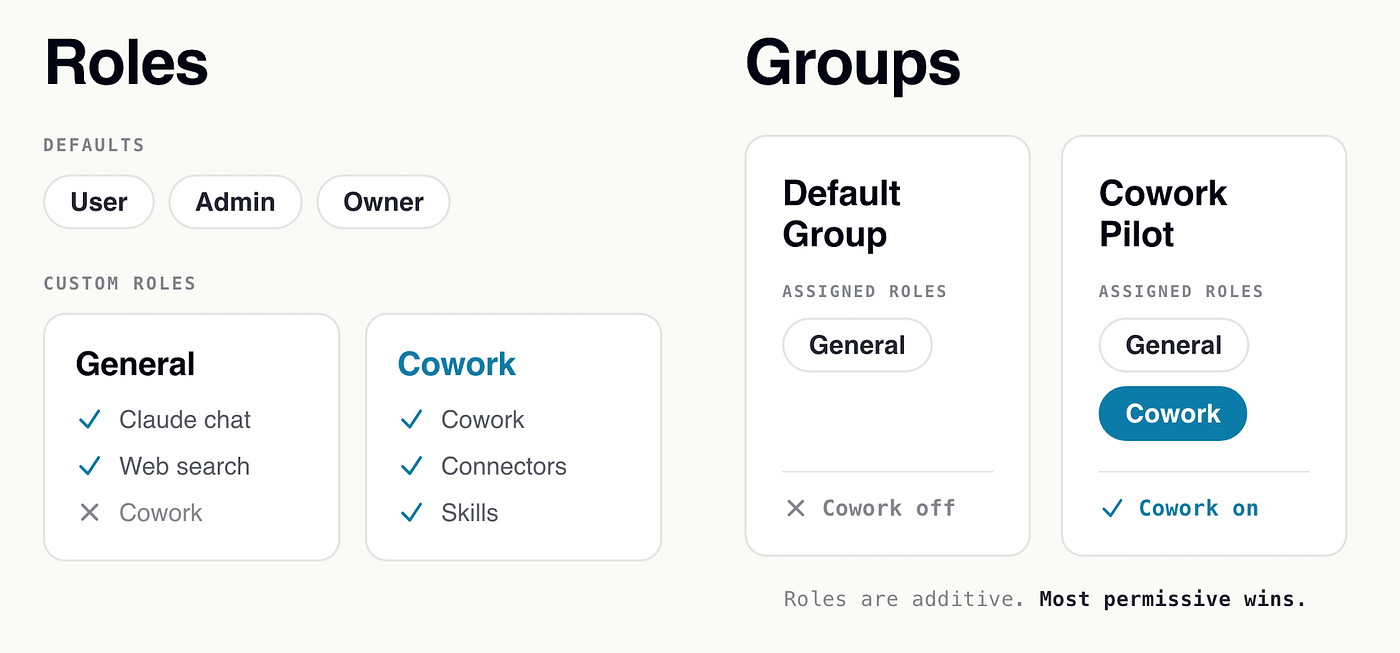
In the example above, we see a single group can have multiple roles (i.e., the pilot group is assigned General and Cowork roles). Roles are additive, with the most permissive one winning. So even though the "General" custom role has Cowork off, since the "Cowork" role has it on, everyone in that group will have access to Cowork.
Cowork's Built-in Capabilities
Custom roles and groups are the main way Owners can control who can do what with Claude. Here, we'll talk more about Cowork's built-in capabilities, their associated risks, and how to enable proper controls.
Web Search
One of Cowork's main features is the ability to search the web. This enables it to fetch up-to-date information about the world and help users with research tasks.
The inherent risk of web search is that Claude may read instructions designed to get it to do something you don't want, known as "Prompt Injection", (e.g. share sensitive data, send a 3rd-party money). While Anthropic has multiple safeguards to protect against this [1], the chances of malicious instructions reaching Claude are still non-zero.
![Successful prompt injections occur when Claude reads malicious instructions and can act on them [1].](/blog/how-to-safely-set-up-claude-cowork-for-enterprise-plans/assets/prompt-injection.png)
The good news is that web search is read-only, so by itself, prompt injection attacks are unlikely to succeed. It's only when Claude can also act on those instructions that the risk becomes important [1], which we'll discuss next.
Accessing Local Files
One way prompt injection attacks can succeed is by getting Claude to do something harmful on your computer's filesystem (e.g. delete important files or security programs). The main way Cowork mitigates that risk is by operating in a virtual machine (VM).
A VM is essentially a computer within your computer. It has its own filesystem and programs, completely isolated from your files and programs i.e. any malicious instructions (or mistakes) are limited to the VM.
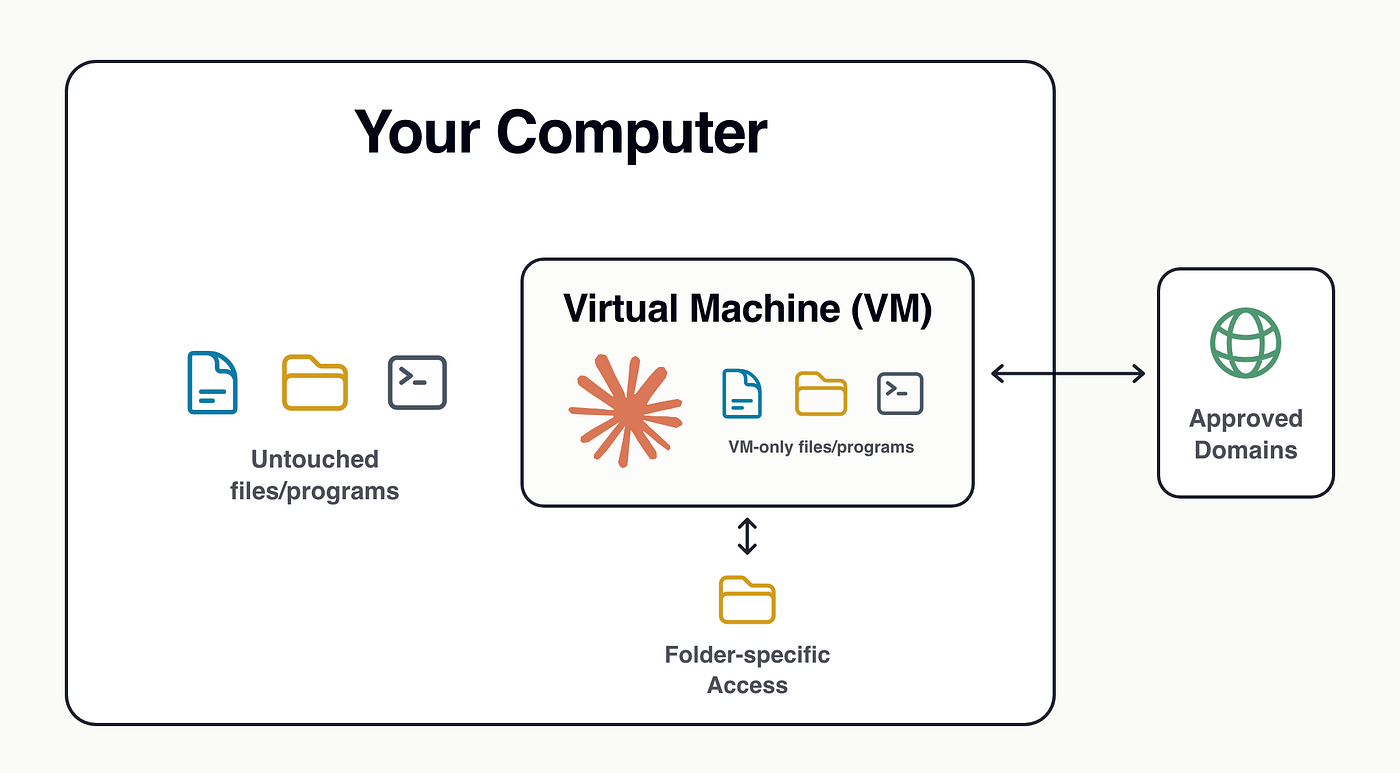
However, users can allow Cowork to operate in specific folders. This feature enables communication between the VM and the user's desktop, thus providing a vector for prompt injection attacks.
There are two main ways to mitigate this risk:
- User Behavior: A guideline for team members to only connect Claude to isolated folders rather than broad system access. While easy to communicate, this is, of course, not fully secure since it relies on user discretion.
- MDM Control: A guardrail that only allows users to connect folders in IT-approved paths (e.g. Desktop or Documents Folder). More details on setting this up are available in ref [5].
Network Egress
Another way prompt injection attacks can succeed is by getting Claude to send data to an untrusted 3rd-party. This is controlled via Claude Network Egress (i.e. outbound communication) settings.
There are 3 levels of control for domains Cowork can talk to:
- Off: Disable Claude's ability to communicate with domains outside the VM. Most secure option, but blocks Claude from communicating with internal systems and trusted APIs, and installing trusted packages.
- Block all domains (except White-list): Claude can only communicate with domains you explicitly allow. Best balance of security and capability for most orgs. You can also select the "Package managers only" option to add Anthropic-approved package managers to the allowlist [4].
- Allow all domains (except Black-list): Claude can communicate with any domain except those you explicitly disallow. The most capable option, but also the least secure.
Unlike most capabilities, network egress cannot be controlled via custom roles (i.e. the domains Claude can talk to are the same for everyone in your org). So erring on the side of security, via levels 1 or 2 above, is usually the best call.
Expanding Cowork's Capabilities
Web search, file access, and network egress are part of Claude's base capabilities. However, these only scratch the surface of what's possible.
Where companies get the most ROI is expanding Claude's capabilities via connectors and skills. Together, these transform Claude from a generic assistant into an AI team member.
Connectors
Connectors give Claude access to the tools your company uses to get work done. So, instead of humans (painfully) curating context for Claude and executing actions based on its responses, Claude can perform entire tasks.
Naturally, however, the more Claude can do, the greater the risk of something going wrong. There are two levels of controls Admins can use to mitigate these risks for individuals (i.e. custom roles) or the entire org.
- Level 1: Connector-level Controls — Admins can decide which connectors the organization and individuals have access to. A good practice is only to enable connectors made by trusted sources (e.g. Anthropic or the original application developer).
- Level 2: Tool-level Controls — Within each connector, admins can control which read/write tools Claude can use and whether users must explicitly approve tool calls.
A reasonable starting point is to enable only trusted connectors for apps your teams actually use and to require explicit user approval for tool calls.
Skills
Skills are reusable instructions and context that Claude can pull as needed (so you don't have to reexplain tasks every time you want them done). Essentially, while connectors give Claude access to tools, Skills teach it how to use them effectively.
Since Claude trusts content from Skill files, the main risk is that users download malicious skills from untrusted sources. Three direct ways to control this are as follows.
- Disable Skills: Avoids malicious skills, but also helpful ones.
- Org-managed Skills only: Users can only see and use Skills assigned to their group. Allows Skills to be centrally managed, but users can't create custom ones for specific workflows.
- User-managed Skills: Users can see Skills assigned to their group and create custom ones. Most valuable, but comes with the risk of users installing malicious Skills.
Since the value of Skills is their flexibility and specificity, limiting them to org-managed ones may not be practical. So, here are a few additional mitigations worth mentioning. [2]
- Skill Guidelines: Communicate a policy with team members to only use Skills from trusted sources (e.g. Anthropic or company vendors) and custom ones (which are the most helpful anyway).
- Limiting Claude's Actions: Even if malicious instructions make it through, their impact is limited to Claude's ability to act on them. We can mitigate this using the same file access, network egress, and connector controls discussed earlier.
Claude in Chrome
The Chrome tool allows Claude to take control of your web browser. While this unlocks powerful use cases, it also presents unique risks.
The main value of Claude in Chrome is that it can fill the gap of existing connectors. For example, if teams need to pull data from a SaaS tool that doesn't have an official connector, they can teach Claude how to pull it via the Chrome tool and a custom skill.
However, there are two main risks in using this tool.
- Mistakes: The Chrome tool often requires Claude to take screenshots of web pages and navigate them with mouse clicks, which is much less reliable than having it interact with apps via an API.
- Prompt Injection: Unlike web search, the Chrome tool allows Claude not only to read web pages but also to interact with them, increasing the risk of successful prompt injection attacks.
Mitigating these risks comes down to a combination of controlling access to the Claude in Chrome tool and the domains it can access.
- Access-control: Admins can limit which users can access the Chrome tool via custom roles or turn it off entirely for the entire org.
- Domain-control: Similar to network egress, admins can take a "block-all except white-listed domains" or "allow-all except black-listed domains" approach.
A reasonable approach to enabling the Claude in Chrome tool is to keep it off by default and create a submission process through which team members can request access for specific use cases. Once approved, the domains can be white-listed, and users can be given access via a custom role.
Computer Use: Similar to Claude in Chrome, the Computer Use tool allows Claude to take control of your entire desktop. I recommend orgs turn this off by default since the value rarely outweighs the risks.
Takeaways
Claude Cowork brings the full potential of modern AI agents to non-technical business users. Although this allows virtually any team in a business to do things cheaper, faster, and better, Cowork's powerful capabilities necessarily come with important risks.
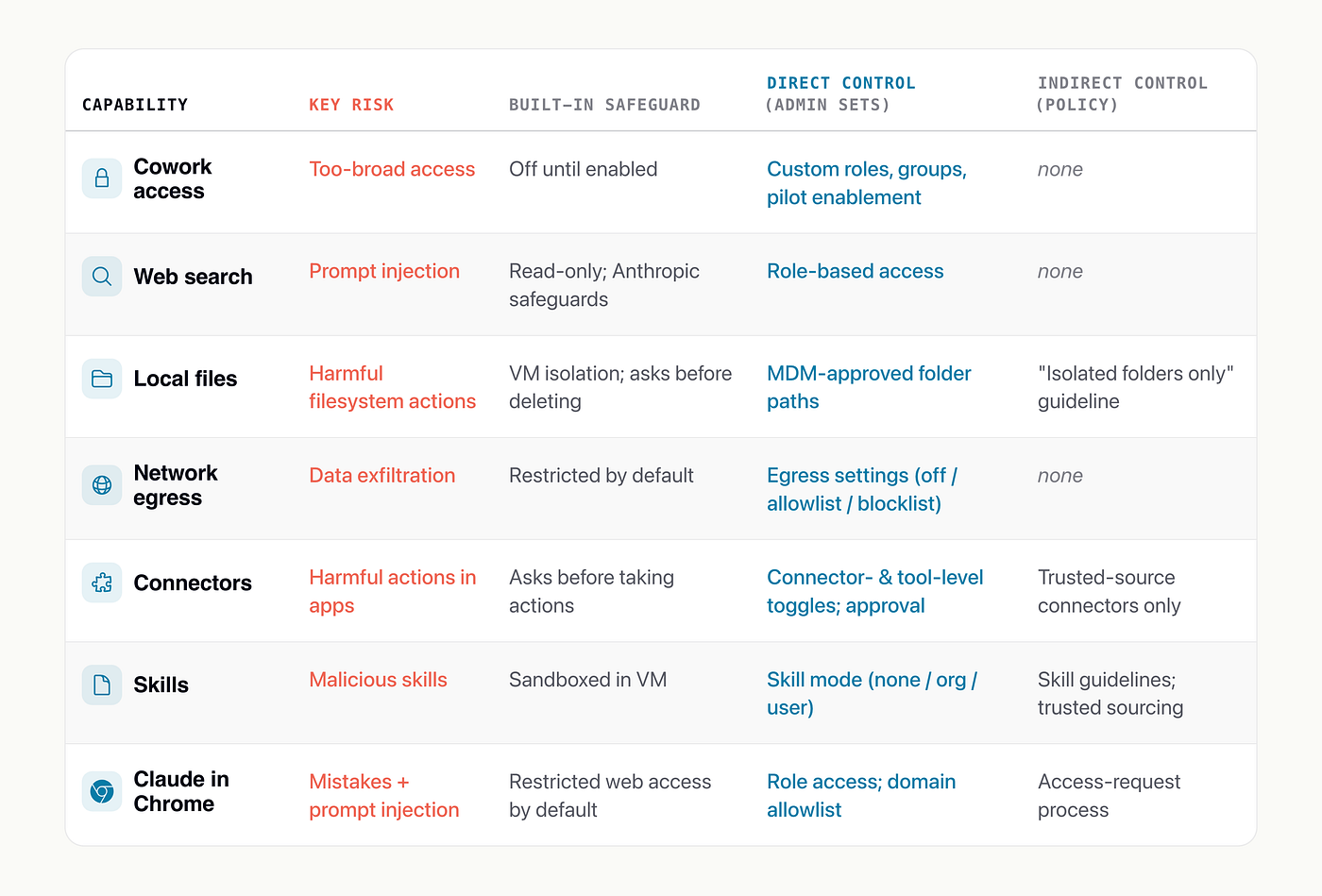
Here, we reviewed key features of Cowork, their risks, and the available controls to mitigate them. These are summarized in the table below.
Although common-sense recommendations were shared in this article, every business is different. Accordingly, AI security and governance decisions must be made within the unique context of your business.
If you want help thinking through this, feel free to email me or set up a call.